Release Repositories
ScanImage is distributed through three version-controlled Git repositories hosted on GitLab, one for each product tier:
scanimage-premium-releases — ScanImage Premium
scanimage-basic-releases — ScanImage Basic
Rather than downloading a static installer for each new version, your lab clones one of these repositories and uses standard Git operations to receive updates, switch between versions, and optionally maintain lab-specific customizations alongside the official code.
Benefits
The release repository model provides a number of advantages over traditional installer-based software distribution.
Immediate notification of new releases and bugfixes
Every time ScanImage starts, checkGit.m compares your local clone against the remote repository. If a newer release or bugfix has been pushed, a notification appears in the MATLAB Command Window — so even labs that never open a terminal or Git client will know the moment an update is ready.
Bugfixes reach every customer simultaneously
When a fix is committed to the repository, it is available to every licensed customer on their next git pull. There is no waiting for a bundled installer release and no manual download. A fix that resolves a critical issue for one lab becomes available to all labs within minutes.
Support can see the exact state of your installation
Because your ScanImage installation is a Git repository, Vidrio support can ask for a git diff or git log to see precisely which files you have changed and how they differ from the official release. This makes remote troubleshooting significantly faster and more targeted than asking “which version are you running?” and comparing notes.
Effortless switching between ScanImage versions
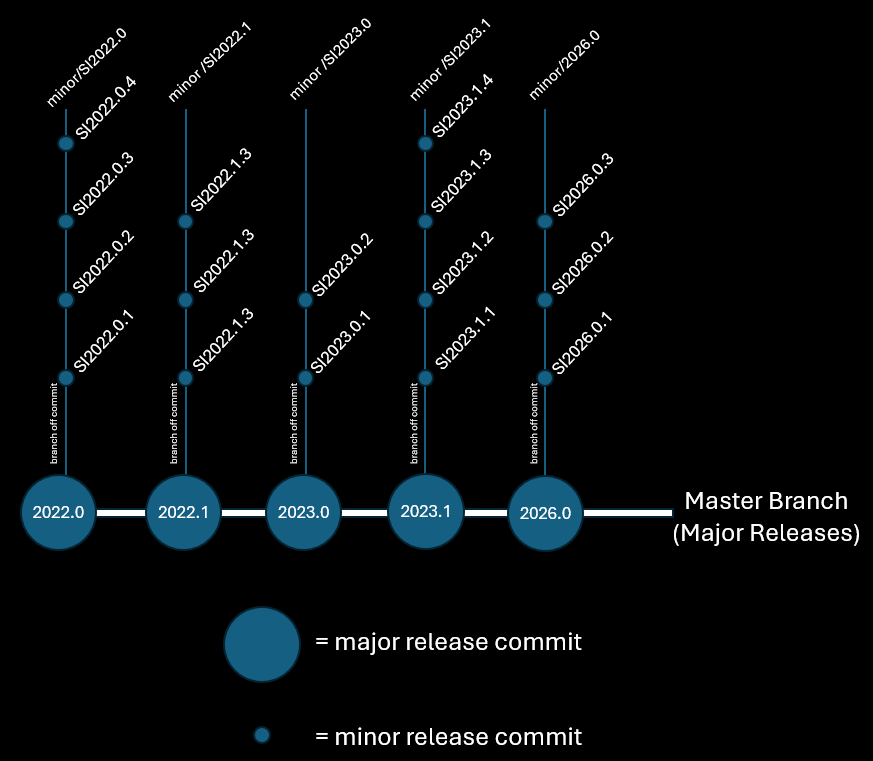
Every major ScanImage release corresponds to a commit on the master branch, going all the way back to ScanImage 2022.0.0. Checking out any of these commits gives you that exact version of ScanImage in seconds — no installer, no download, no uninstall step.
Bugfix branches for every major release
Each major release on master has a corresponding minor/* branch that receives targeted bugfix commits for that version line. You can remain on a familiar major release and still receive fixes without having to move to a newer major version or re-run any installer.
Incremental updates — no large downloads
After the initial clone, subsequent updates download only the files that changed. Pulling a bugfix might transfer a few kilobytes rather than hundreds of megabytes. This keeps updates fast even on slow or metered network connections.
One credential for the entire lab
Your lab receives a single deploy token regardless of how many computers it uses. You can clone the repository on every PC in your lab with the same token. The number of ScanImage licenses you purchased determines how many machines can actually run ScanImage — not how many hold a clone of the repository.
Lab-specific customizations that survive updates
Labs that modify ScanImage source files can maintain their changes on a private branch while still merging official fixes and new releases from the release repository. Official releases never overwrite your customizations, and merges can be performed on your own schedule. See Lab Upstream Workflow and Lab Upstream Workflow (SourceTree) for the full guide.
Ask to share your customizations with the community
If your lab develops extensions or modifications that would benefit other ScanImage users, Vidrio can host them on a dedicated user/<Lab>/<Project> branch in the official release repository. This makes your work available to all licensed users in a license-compliant way, without requiring you to manage a public fork.
Precise version tracking for reproducibility
git log or the SourceTree history view shows the exact commit your lab is running, its timestamp, and a description of every change since the previous version — giving you an unambiguous, permanently auditable record of your software environment for publication reproducibility.
Works offline after the initial clone
Once the repository is cloned, ScanImage runs without any network connection. The deploy token is only needed for the initial clone and when actively pulling updates.
Complete, instant rollback
If an update causes an unexpected problem with your hardware or pipeline, checking out the previous commit restores the exact code you were running before — no installer to track down, no guesswork, no support ticket required to get back to a known-good state.
Pull forward only the changes you want
When a new major release of ScanImage comes out, you can inspect the diff before merging it into your lab branch. Labs using the upstream workflow can selectively merge individual bugfix commits from a newer release into an older one, giving you fine-grained control over what changes enter your production environment.
Installation
1. Purchase a license
Release repository access is included with an active MBF Assure plan. Contact sales@mbfbioscience.com to purchase or renew.
2. Receive your credentials
After your order is processed, MBF Bioscience operations will provide two things:
Login credentials to the download center at support.mbfbioscience.com
A deploy token — a username and token value specific to your lab
3. Download the installer
Log in to support.mbfbioscience.com and download the ScanImage installer for your product tier (Premium or Basic).
4. Run the installer
The installer walks you through the following steps automatically:
Prerequisite check — Git and Git LFS are required to clone and use the repository. If either is not found on the PC, the installer offers to download and install them for you before proceeding.
Deploy token entry — Enter the deploy token username and token value provided by MBF Bioscience. This credential is stored securely in the Windows Credential Manager and never written to disk in plain text. It is embedded in the Git remote URL so that subsequent
git pulloperations work without re-entering credentials.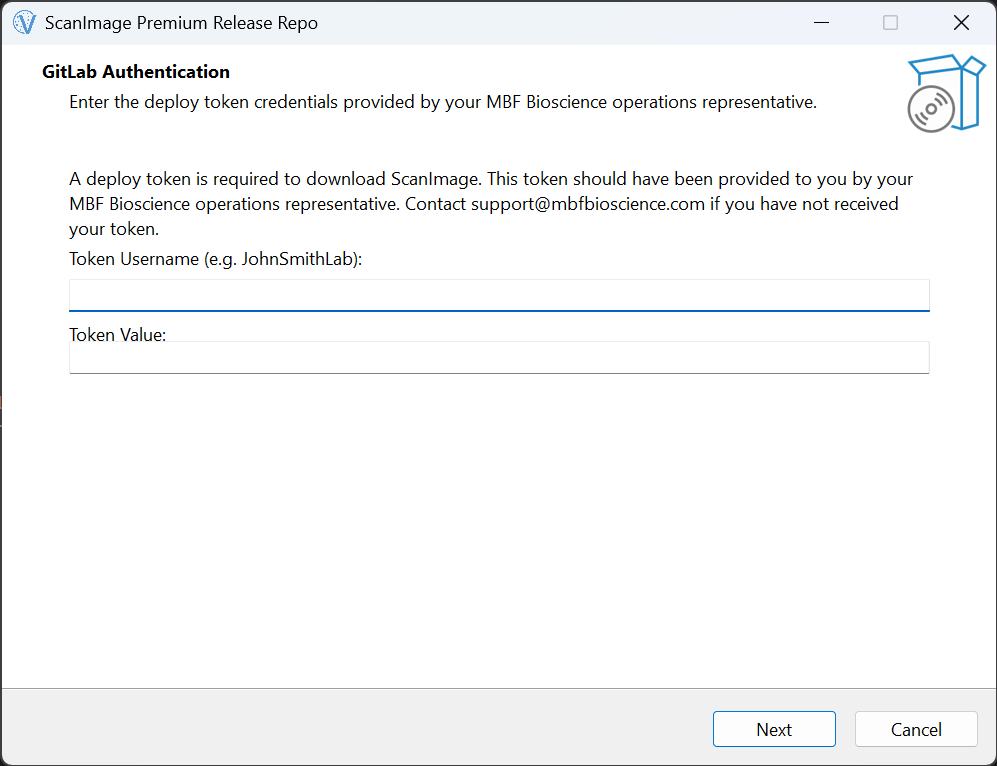
Repository clone — The installer clones the release repository to your local machine and fetches all Git LFS content (binary assets such as reference data). This is the only step that requires an active internet connection.
License component registration — The ScanImage licensing component (QLM) is registered on the PC. The installer briefly requests administrative elevation for this step only; all other steps run without elevated privileges.
MATLAB path configuration — The installer detects all MATLAB installations on the PC and automatically adds the ScanImage folder to the MATLAB path. For secondary or custom-directory clones (see below), this step is skipped and you manage the MATLAB path manually.
5. About the deploy token
The deploy token is issued per lab, not per computer. You can clone the release repository on as many PCs in your lab as you wish using the same token. The number of ScanImage licenses you have purchased determines how many of those machines can actually run ScanImage; the token itself does not impose a per-machine limit on cloning.
The deploy token’s expiration date is tied to your MBF Assure plan. When the token expires, Git can no longer authenticate with the remote, and git pull will fail. To renew access:
Contact MBF Bioscience to purchase a new MBF Assure term.
Operations will generate a new deploy token with an updated expiration date.
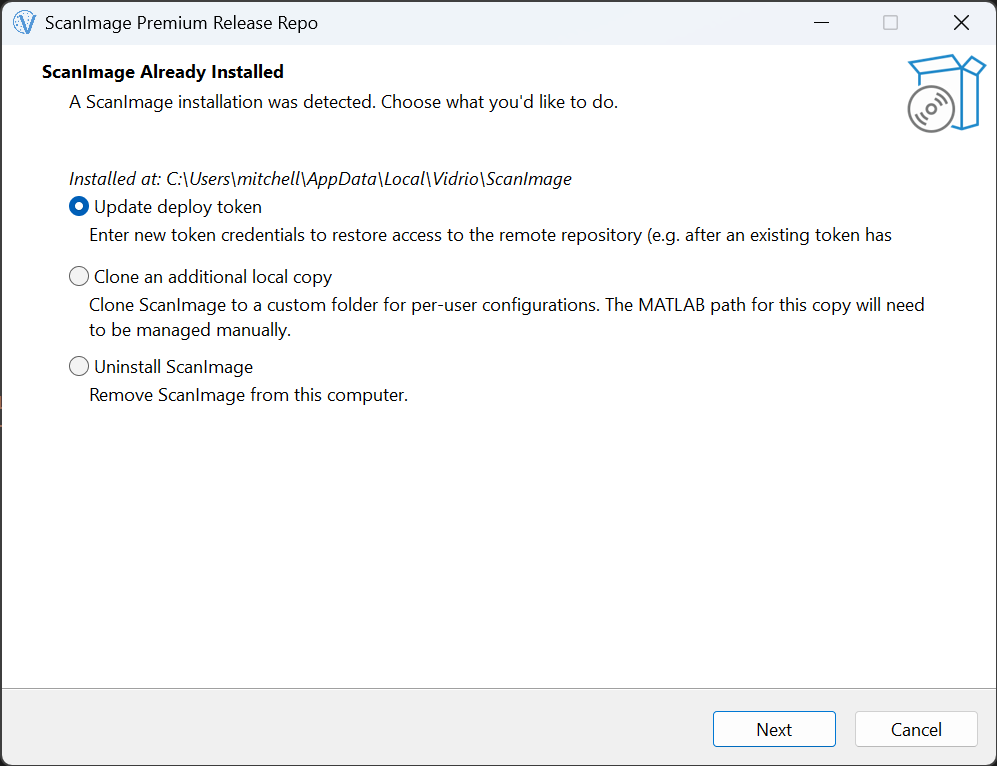
Run the installer again on each PC and choose Update deploy token from the landing page. This rewrites the remote URL in your existing clone with the new credential — no re-cloning is required.
Use
Automatic update notifications with checkGit.m
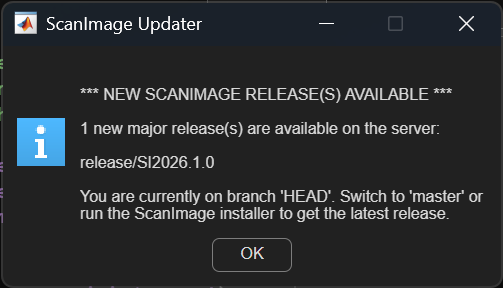
Every time ScanImage launches, checkGit.m silently queries the remote repository and compares the remote state to your local clone. If your clone is behind — meaning a newer release or bugfix has been committed since your last pull — a notification is printed to the MATLAB Command Window.
For labs that are unfamiliar with Git or prefer not to use it, checkGit.m alone provides meaningful value: you will always know the moment an update is available, and you can contact support@mbfbioscience.com to find out what changed and whether the update is relevant to your setup.
Getting started with SourceTree
For labs that want to actively use Git, we recommend SourceTree as a graphical Git client. SourceTree makes it easy to browse history, switch between versions, pull updates, and manage branches without using a terminal.
Download SourceTree for free from sourcetreeapp.com and open your ScanImage repository folder to get started.
Switching between ScanImage versions
Every major ScanImage release corresponds to a tagged commit on the master branch. The full release history goes back to ScanImage 2022.0.0. To check out a specific release in SourceTree:
Open your ScanImage repository in SourceTree.
In the Commit Graph (the main history panel), locate the release you want. Tagged commits are shown with a label (e.g.
2022.0.0,2023a,2024.0).Right-click the commit and choose Checkout… → Checkout this commit (detached HEAD).
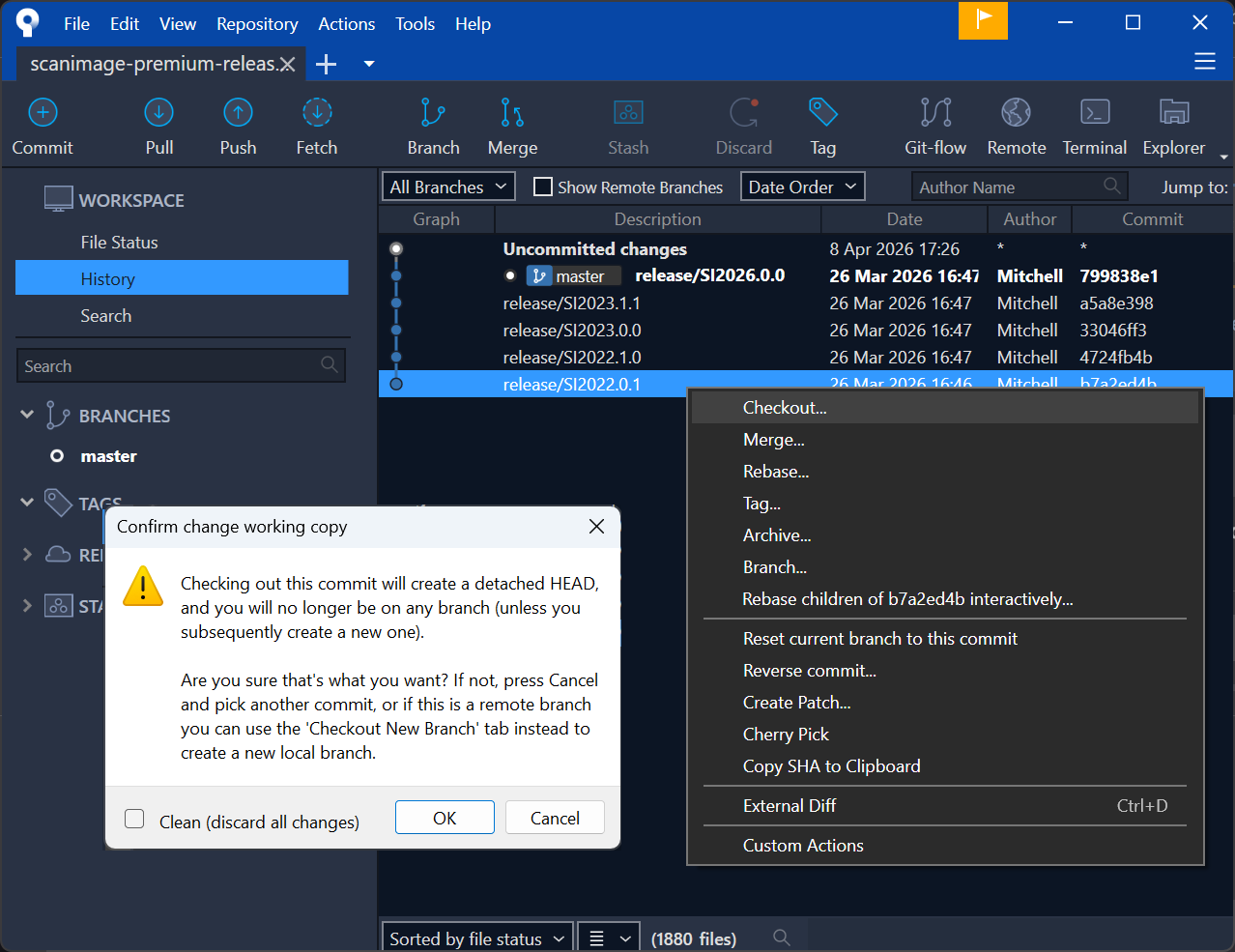
ScanImage will now run from that exact version of the code. To return to the latest release, double-click master in the left sidebar under Branches.
Note
Checking out a specific commit places the repository in “detached HEAD” state. This is normal and ScanImage will work correctly. It simply means you are not on a named branch. No files are deleted or modified; the repository can be returned to any branch at any time.
Receiving bugfixes on your current major release
Each major release has a corresponding minor/* branch that collects targeted bugfix commits for that version line. For example, the 2024 release is maintained on minor/2024. To receive bugfixes without moving to a new major release:
In the left sidebar under Remotes > origin, find the appropriate
minor/*branch.Double-click it to check it out as a local tracking branch.
Click Pull in the toolbar to fetch the latest bugfix commits.
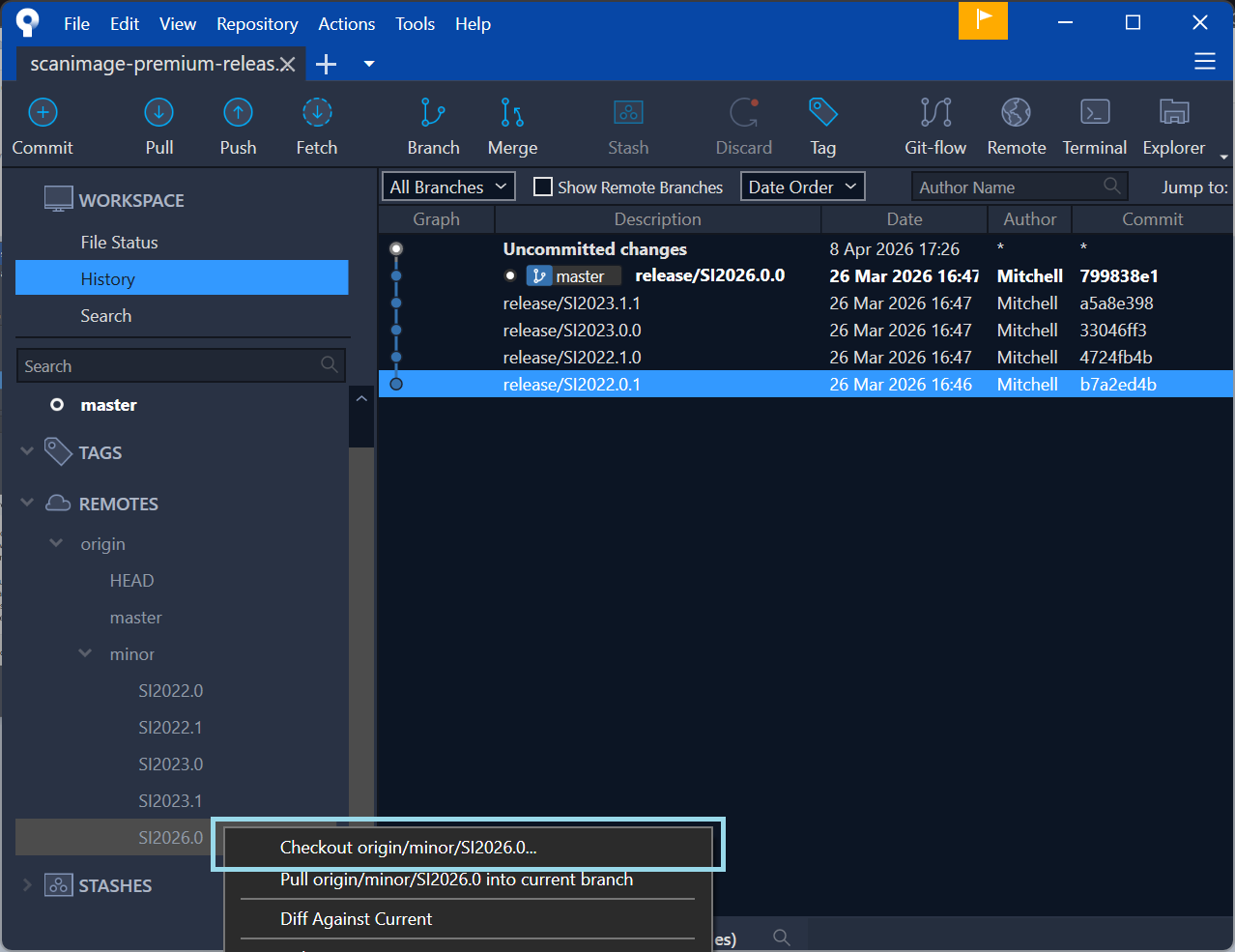
You can stay on a minor/* branch indefinitely, receiving only the fixes that Vidrio has validated for that release line.
Cloning to an additional directory
If your lab needs a second local copy — for example, a separate development or staging installation alongside your production one — run the ScanImage installer a second time. On the landing page, choose Clone additional local copy and enter the destination folder when prompted. The installer will perform a fresh clone to that location. The MATLAB path is not configured automatically for secondary clones; add the folder to your MATLAB path manually using pathtool or addpath in MATLAB.
Lab customization workflow
Labs that want to modify ScanImage source code while still receiving official releases and bugfixes can set up a private branch that treats the release repository as an upstream remote. Customizations live on your private branch; official changes are merged in on your schedule. For full step-by-step instructions:
Lab Upstream Workflow — command-line / terminal instructions
Lab Upstream Workflow (SourceTree) — SourceTree graphical interface instructions
If a forced rebase of the release repository occurs
In rare circumstances, Vidrio may need to rewrite the history of the release repository — for example, to remove accidentally committed files or to restructure release tags. If this happens, commits that your clone was tracking may no longer exist at those positions on the remote, and your local branch may appear to be ahead of or diverged from origin.
If you are using the lab upstream workflow (recommended): Your customizations live on a private branch in your own repository, not directly on the release repository. A forced rebase of the upstream does not affect your private branch or your committed work. After a rebase, you will need to re-fetch upstream and rebase or merge your lab branch onto the new history — but your commits remain intact and are not at risk. This is one of the strongest practical reasons to use the lab upstream workflow: it fully insulates your work from any structural changes to the official repository.
If you are using a direct clone of the release repository without a private branch: Your local branch may be in an inconsistent state after a rebase. To bring it back in sync with the remote, use SourceTree’s built-in terminal (click the >_ button in the toolbar, or Actions>Open in Terminal):
Warning
The following commands discard all uncommitted local changes. If you have any modifications in your working directory that you want to keep, save or stash them before proceeding.
To reset master:
git fetch origin
git checkout master
git reset --hard origin/master
To reset a minor/* branch (replace the diverged branch you were on with minor/2024):
git fetch origin
git checkout minor/2024
git reset --hard origin/minor/2024
After the reset, SourceTree will refresh and your clone will exactly match the remote. ScanImage will be running from the same state as the official repository with no divergence.