Mosaic Tab
Feature: Tile Manager
Keyboard Shortcuts
Shortcut |
Description |
|
When the Mosaic tab is visible, this starts the add tile tool. |
|
When the add tile tool is active, escape cancels the add tile tool. |
|
When a cell or range of cells in the Mosaic Panel’s table is selected, this deletes each of those selected tiles. |
The AddMosaic tool (scanimage.gui.viewport.tools.tile.AddMosaic) creates tiles in the viewport. Click and drag to add multiple tiles at once. Note that these tiles are based on the nominal field of view of the selected imaging system. The nominal field of view can be calibrated using the stage-scanner alignment
Mosaic Panel
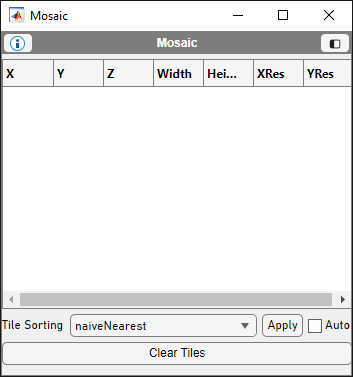
Table Column |
Description |
X |
X-component of sample position in microns that the stage will navigate to in order to scan this row’s tile. |
Y |
Y-component of sample position in microns that the stage will navigate to in order to scan this row’s tile. |
Z |
Z-component of sample position in microns that the focal point of the imaging system will navigate to using the Z stage only in order to scan this row’s tile. |
Width |
Width of the tile in microns that will be scanned for this row’s tile. |
Height |
Height of the tile in microns that will be scanned for this row’s tile. |
XRes |
The desired number of pixels that will be scanned in total across the width of the tile. Note This is regardless of the number of ROIs spanning the width. For example, a tile with XRes = 1000 with 3 ROIs required to scan it with have each ROI with a pixel resolution of 1000/3 rounded up to the nearest even integer, 334. |
YRes |
The number of pixels that will be acquired in total across the height of the tile. Must be an even positive integer. |
Element |
Description |

|
Dropdown Menu: Specify the tile sorting algorithm to use. Apply Button: Sorts the tiles according to the chosen sorting algorithm. Auto checkbox: When checked, any time the tiles are changed, they are resorted according to the chosen sorting algorithm. |
Clear Tiles Button |
Removes all tiles |
Add Mosaic Panel
Allows to configure the setting of the mosaic tile before adding it to the viewport.
Element |
Description |
Add Mosaic Top Panel |
Save/Load buttons allow to save current mosaic or load a mosaic from a file. |
Add Mosaic button |
After pressing, allows to select an area in the viewport to be added as a mosaic tile. |
Overlap [%] |
Sets the overlap percentage between tiles. |
Tile Size [um] |
Sets the tile size in um. |
Tile Spacing [um] |
Sets the space between the tiles in um. |
Pixel Resolution [pixels] |
Resolution of the tile in pixels. |