Opening ScanImage® Tiffs in ImageJ and Fiji
ScanImage® stores every channel, frame, slice and volume of an acquisition as a flat sequence of images in one Tiff file. ImageJ and Fiji open that file as a single stack. To browse it by channel, z and time, rearrange the stack into a hyperstack using the counts recorded in the file’s header.
See also
Output Files for the other files ScanImage® writes, ScanImage® BigTiff Specification for the byte-level layout, and Acquisition Metadata for everything stored in the header.
How the images are ordered
ScanImage® writes one image per saved channel for every frame, so channels change fastest. Reading through the file, the order is:
Channel: one image for each saved channel.
Frame within a slice: the frames acquired at one z position.
Slice: the z positions of one volume, followed by any fast-Z flyback frames.
Volume: the repeats of the whole stack.
A single-plane time series uses only channels and frames. A stack adds slices, and repeated stacks add volumes.
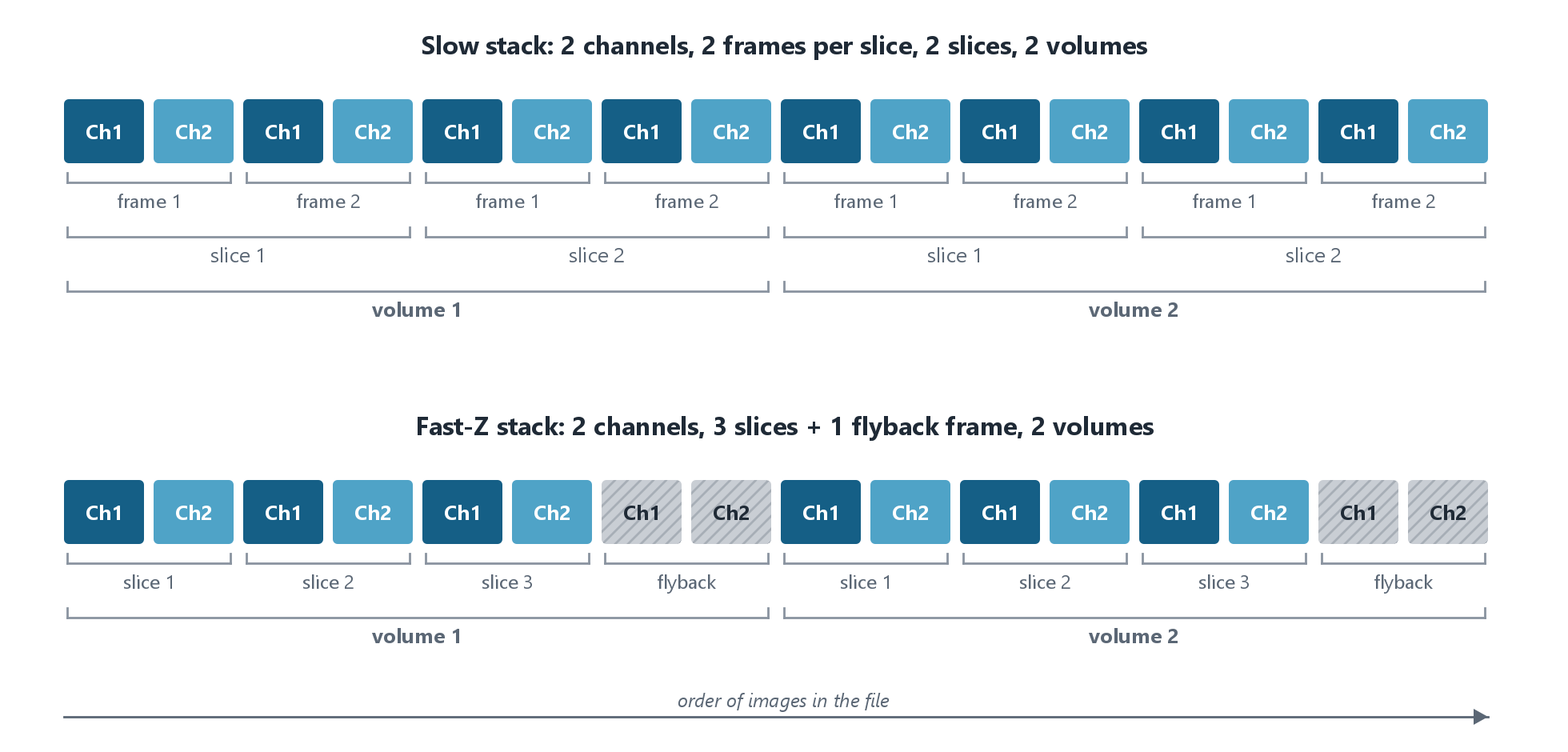
Order of images in two-channel ScanImage® Tiffs. Flyback frames (hatched) are saved at the end of each fast-Z volume.
Note
ScanImage® writes BigTiff files. ImageJ without the Bio-Formats plugin cannot open them; use Fiji, or install Bio-Formats into ImageJ.
Note
When an acquisition is split across several files (the # Frames/File logging
setting, or Frame Selection), each file holds only part of the sequence. Count the
images in the file you opened rather than relying on the totals for the whole acquisition.
Reading the counts from the header
The values you need are in the ScanImage® header of the file:
Header field |
Meaning |
|---|---|
|
The saved channels. The number of channels is the number of entries. |
|
Frames acquired at each z position. |
|
z positions per volume. |
|
Images per channel in each volume, including fast-Z flyback frames. |
|
Number of volumes. |
To see the header in Fiji, open the file with File > Import > Bio-Formats and tick
Display metadata. The whole ScanImage® header is listed as one entry named Software;
search it for the field names above. The values that change from frame to frame, such as
frameNumbers and frameTimestamps_sec, are listed as separate entries, but only for the
first image in the file.
In MATLAB, Open Tiff reads the header and returns the data already arranged by channel, frame, slice and volume.
Opening the file
In Fiji, choose File > Import > Bio-Formats and select the ScanImage® Tiff. For files larger than your computer’s memory, tick Use virtual stack. File > Open and drag and drop also work in Fiji, which passes the file to Bio-Formats.
The file opens with every image as a separate time point: a two-channel file of five frames opens as ten time points. Check that the number of images matches the counts from the header: channels × images per volume × volumes.
Choose Image > Hyperstacks > Stack to Hyperstack.
Set Channels (c), Slices (z) and Frames (t), and pick the Order from the table below.
Set Display Mode to Composite to overlay the channels, or Grayscale to view them one at a time.
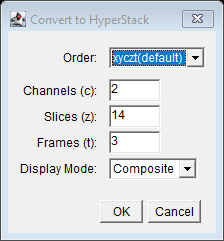
Settings for a two-channel fast-Z stack of 4 slices plus 10 flyback frames, 3 volumes.
Acquisition |
Order |
Slices (z) |
Frames (t) |
Notes |
|---|---|---|---|---|
Time series at one plane |
xyczt |
1 |
frames |
|
Stack, one frame per slice |
xyczt |
slices |
volumes |
Includes fast-Z stacks; see flyback frames below |
Stack, several frames per slice |
xyctz |
slices |
frames per slice |
One volume only; see below for repeated volumes |
- Repeated stacks with several frames per slice
These have four dimensions besides x and y (channel, frame, slice, volume), one more than a hyperstack holds. Use xyctz with Frames (t) set to the frames per slice and Slices (z) set to slices × volumes. The z axis then runs through the slices of the first volume, then the second, and so on. Alternatively, average the frames at each slice in MATLAB with Open Tiff before opening the result in Fiji.
Fast-Z flyback frames
During a fast-Z stack, ScanImage® keeps acquiring while the z actuator returns to the top of the volume. These flyback frames are saved too, after the last slice of each volume, so that every volume has the same number of images. They are not part of the volume and can be removed.
When numFramesPerVolumeWithFlyback is larger than actualNumSlices:
In Stack to Hyperstack, set Slices (z) to
numFramesPerVolumeWithFlyback, not toactualNumSlices.Remove the flyback frames with Image > Hyperstacks > Make Subset. Set Slices to
1-<actualNumSlices>and keep all channels and frames.
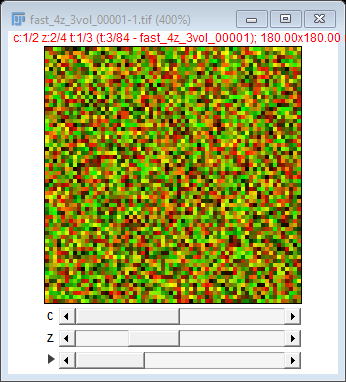
The stack from the previous figure after Make Subset: 2 channels, 4 slices, 3 volumes (simulated data).
Multiple ROIs
With multiple ROIs, every frame contains
all ROIs stacked vertically in one tall image, the first ROI at the top. Depending on the
scanner, a few blank lines separate consecutive ROIs; their number is
round(SI.hScan2D.flytoTimePerScanfield / SI.hRoiManager.linePeriod).
To work on one ROI in Fiji, arrange the hyperstack first, then draw a rectangle around the ROI
and choose Image > Duplicate with Duplicate hyperstack ticked. To split every ROI exactly,
use scanimage.util.getMroiDataFromTiff in MATLAB.